 The last two weeks I have been developing an application that creates Sales Orders from a web interface. The application is used to return damaged watches and sunglasses to the repair centre.
It creates a Sales Order entry in SYSPRO and makes use of various custom fields to store data not available in SYSPRO. The application wasn’t very complicated, but did take a few days to complete.
During this development, I came across a nice quick tip (see reference below) when browsing ASP.NET pages in Visual Studio that allows you to specify that you need to browse with a Browser (IE in this case) sans the add-ons. I wanted to share this here.
When you create a Web Application, select to browse a page with a specific Browser.
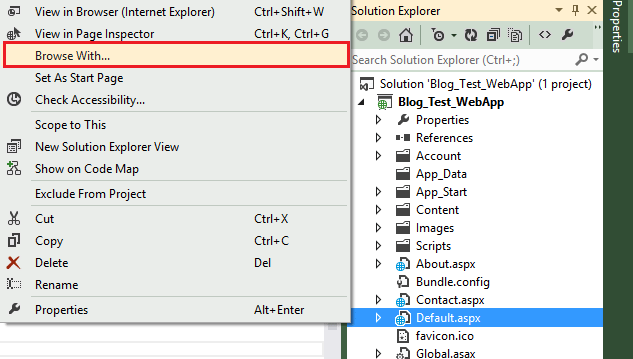
The ‘Browse With – ‘ dialogue box is displayed.
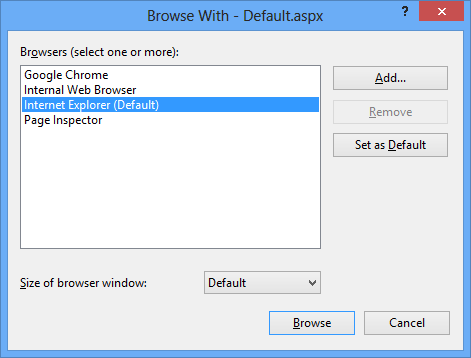
Click on the ‘Add’ button.
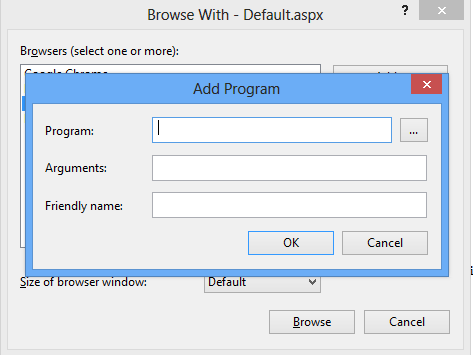
Browse to Internet Explorer and enter ‘-extoff’ in the Arguments field.
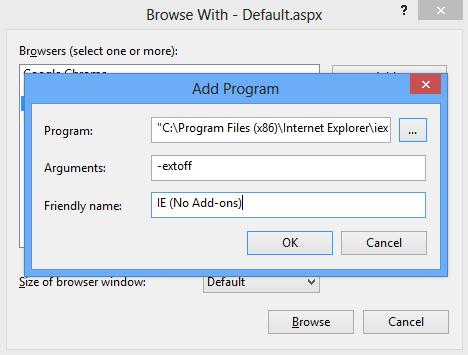
After you click OK, you will have the option to browse the Web Page with Internet Explorer without any add-ons.

I hope that somewhere someone might find this useful.
Reference: Shawn Cicoria, Image Credit

