Use Bing Maps in Office Excel 2013

Office Excel 2013 Data EntryI quickly wanted to share a nice trick I learned today in Excel 2013. As we all know, visualizing data trumps any text representation hands down. In programming, when we as developers can create useful dashboards we give our applications a definite edge above other competing apps out there. It is no wonder that Excel is so good at charting and visualizing data.

To illustrate this nice trick, open up Office Excel 2013 and enter some random City Names in column A, and dummy sales figures for each city in Column B.
(more…)

Continue ReadingUse Bing Maps in Office Excel 2013

Windows 8 Tips Part 5 – Turn on File History

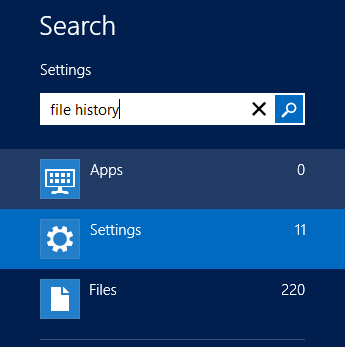
Windows 8 Search Settings File HistoryEvery responsible computer owner has a decent backup plan in place that can be used in an emergency to restore lost files. Yeah, right. How does your backup strategy measure up? Are you backing up your data? When last did you backup your data? Do you do it once a week? On occasion?

Well with Windows 8, backing up is really easy and all you have to do is turn on File History, point Windows 8 to your selected File History location and off you go. It would make sense to select a large external drive or network drive to use for the File History.

(more…)

Continue ReadingWindows 8 Tips Part 5 – Turn on File History

Windows 8 Tips Part 4 – Bring back Hibernate

Windows 8 Shut down optionsWindows 8 definitely starts up very fast. Much faster than my previous Windows installations. But one thing that I got used to was hibernating. The difference between Sleep and Hibernate (According to Microsoft) is this:

  • Sleep is a power-saving state that allows a computer to quickly resume full-power operation (typically within several seconds) when you want to start working again. Putting your computer into the sleep state is like pausing a DVD player—the computer immediately stops what it’s doing and is ready to start again when you want to resume working.
  • Hibernation is a power-saving state designed primarily for laptops. While sleep puts your work and settings in memory and draws a small amount of power, hibernation puts your open documents and programs on your hard disk, and then turns off your computer. Of all the power-saving states in Windows, hibernation uses the least amount of power. On a laptop, use hibernation when you know that you won’t use your laptop for an extended period and won’t have an opportunity to charge the battery during that time.

(more…)

Continue ReadingWindows 8 Tips Part 4 – Bring back Hibernate

Windows 8 Tips Part 3 – Reduce your clicks

Windows 8 has definitely changed the way I interact with the OS. I find myself using more keyboard shortcuts than in the past. There are the usual suspects such as WinKey+D to take you to your desktop, WinKey+L to lock your PC, Alt+Tab to switch between open apps and WinKey+, to make all windows transparent so you can see your desktop. There are a ton of other keyboard shortcuts you can use to get around Windows 8 more easily.

The next nugget I stumbled across quite by accident, and I have since then seen a few blog posts about this quick menu. How can you access Programs and Features, System, Control Panel, Task Manager and many other often used locations in a snap? Move your mouse into the bottom left corner of your screen (you know, where your start menu used to be). You will see the following pop up:

Windows 8 Start Icon


(more…)

Continue ReadingWindows 8 Tips Part 3 – Reduce your clicks

Windows 8 Tips Part 1 – Mount ISO’s

I decided to upgrade from Windows 7 Ultimate to Windows 8 Pro. It was the best decision I have ever made. I didn’t upgrade purely because of all the hype surrounding Windows 8, but more because I wanted to start developing Windows 8 style apps.

Windows 8 Logo

Well, I must say that after playing with Windows 8, I am absolutely hooked. The UI is so intuitive and easy to navigate. Getting around the OS is a breeze and I don’t even want to mention the Windows Store. But let me start off from the beginning and go on from there.

(more…)

Continue ReadingWindows 8 Tips Part 1 – Mount ISO’s

Upgrading Your Windows 7 OS With Windows Anytime Upgrade

So you have just purchased your new laptop, and along with all the other software, it came pre-installed with Windows 7 Home Premium. Did you know that you can upgrade your version of Windows 7 without having to use a disk? Looking For Something Else? Try these links instead: Script…

Continue ReadingUpgrading Your Windows 7 OS With Windows Anytime Upgrade